

On this page
Managing classes
Create a class
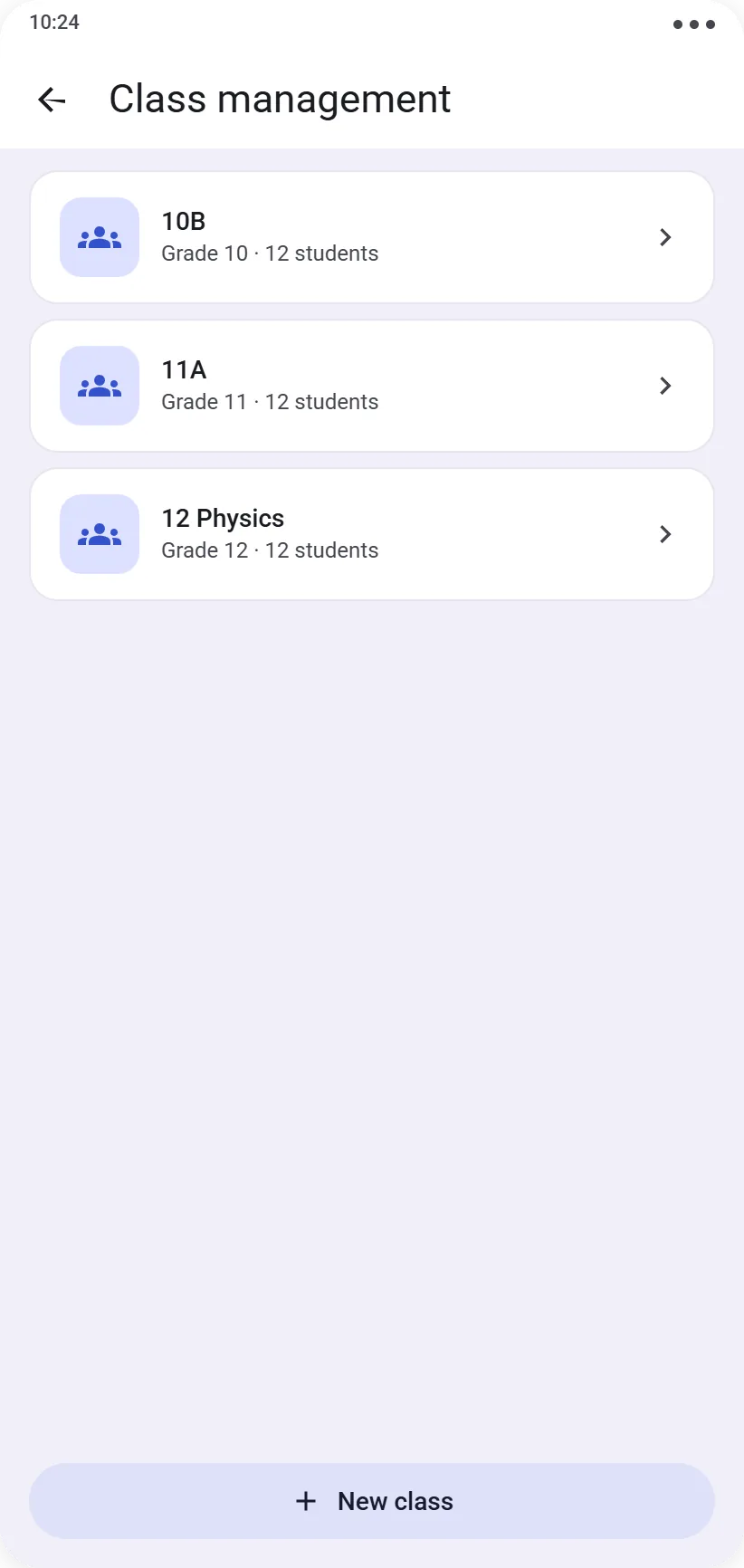
From Management → Classes, tap New class. Two pieces of information are required: a name and the level it belongs to (see Creating your levels if you haven’t done this yet).
(the free version allows 1 class)
⚠️ A class with the same name can’t exist twice — if one already exists, you’ll need to delete it first to replace it.
Add students
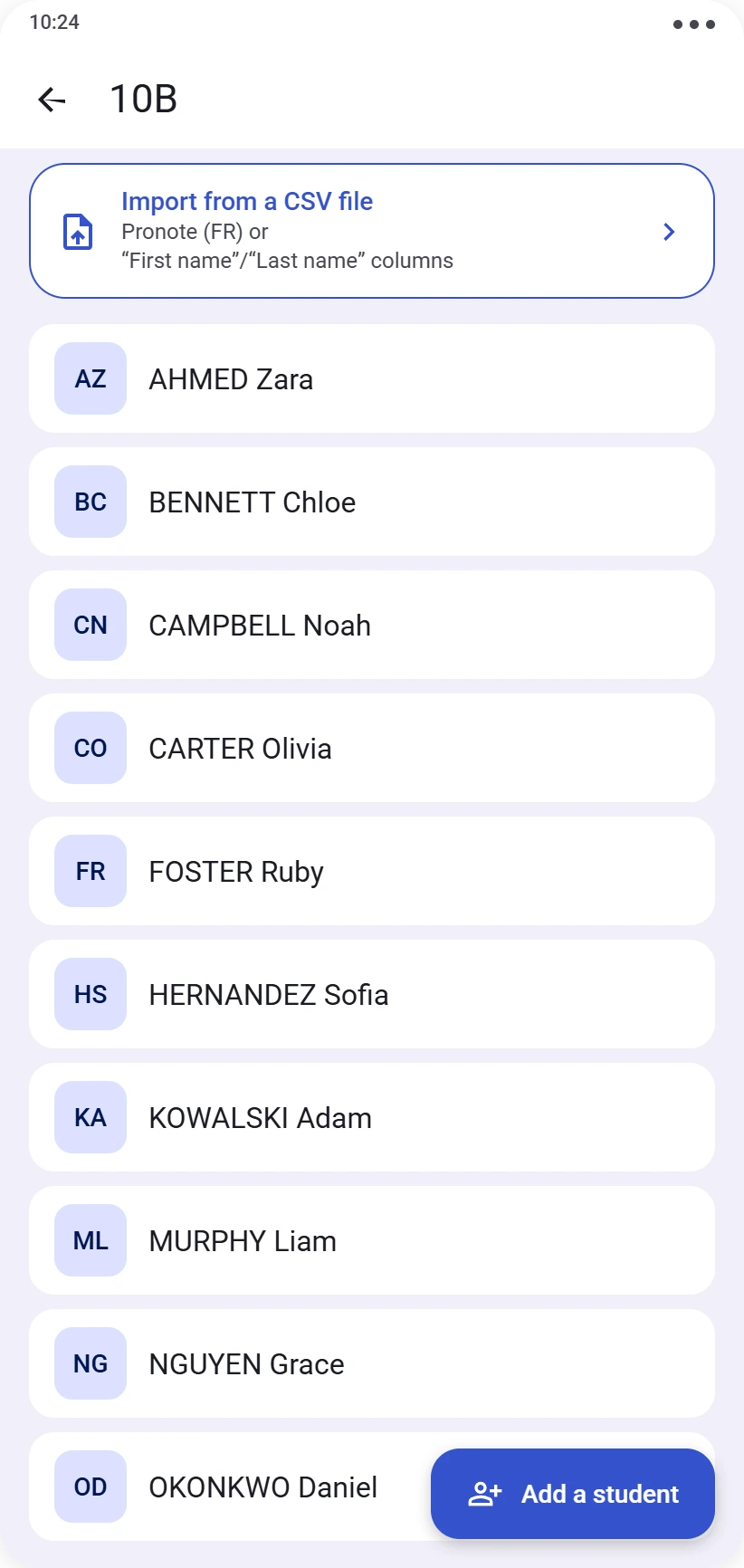
A class with no students isn’t much use. Add them:
- one by one, directly from the class page
- all at once, by importing a CSV file.
The app automatically recognises files with named columns (Last name, First name) or exported from Pronote (FR). If no headers are recognised, the first two columns are read as last name, first name.
Edit a class
The name and level remain editable at any time. Changing an existing class’s level will ask for confirmation, since this change can affect the protocols and results linked to it.
Delete a class
Deleting a class is permanent and also deletes all its students and their associated results.
Ready for the next step? See Drawing a room layout.