

On this page
Creating your levels
Levels (e.g. Grade 10, Vocational Year 1) are the starting point for your year’s structure: your classes and protocols are linked to them, as are your periods if you define any (see Organizing the year into periods) — and they act as the guiding thread for filtering and sorting throughout the app.
Create a level
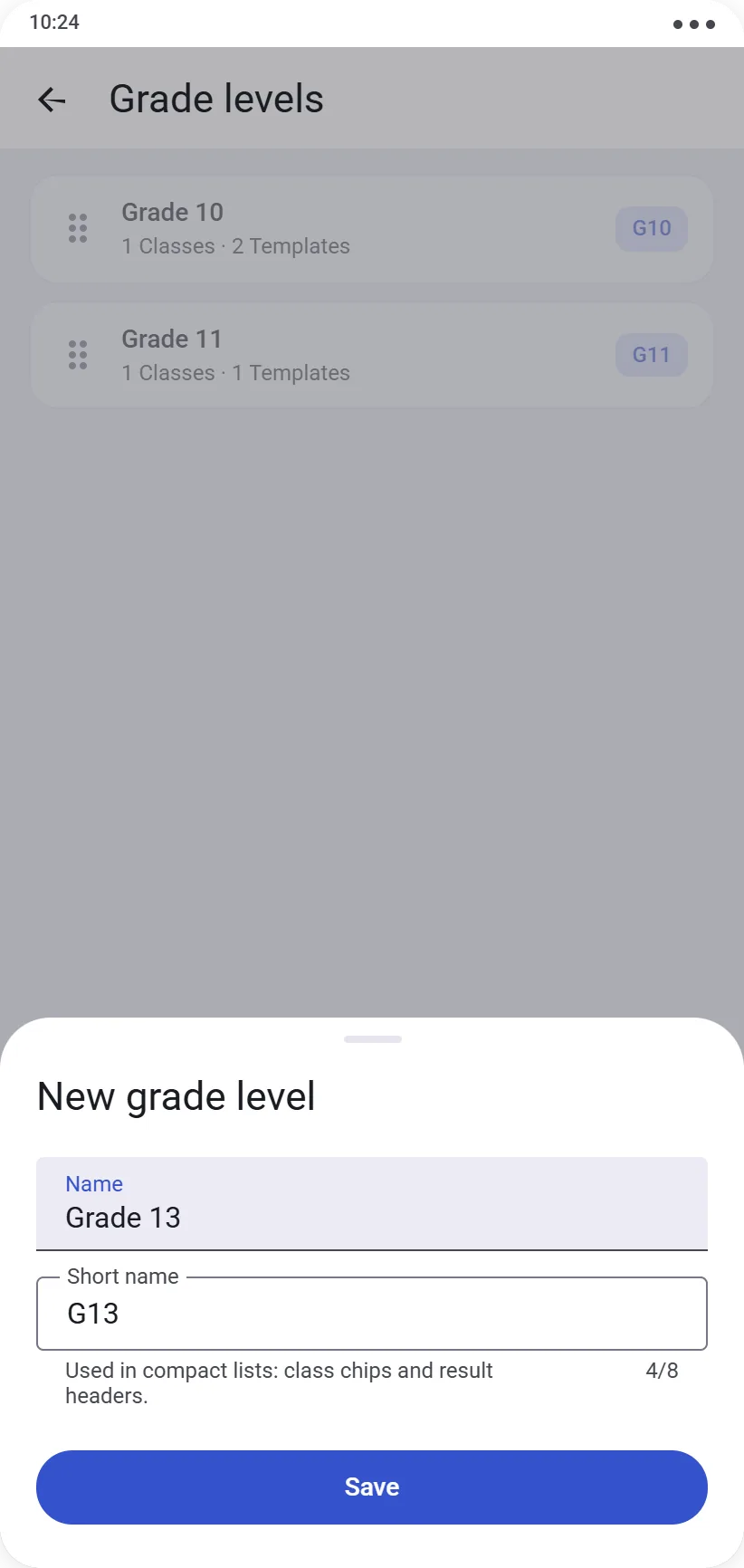
From Management → Year Structure → Levels, tap Add a level. Two fields are required:
- a name (e.g. “Vocational Year 1”)
- a short name, 8 characters maximum, used in compact displays (class chips, result headers)
Order your levels
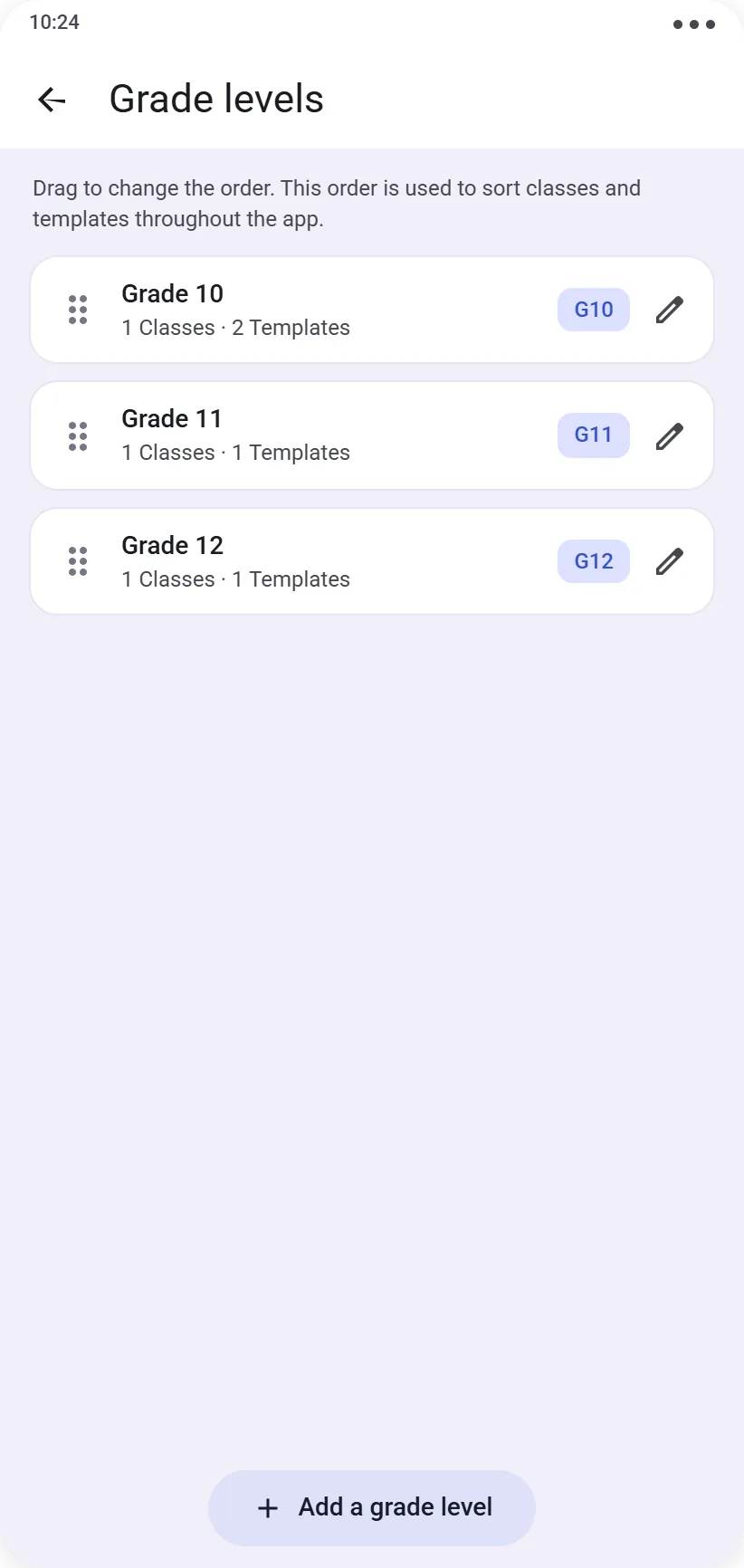
Drag a level in the list to change its rank — this order determines how classes and protocols are sorted throughout the app.
Editing or deleting
The name and short name remain editable at any time.
If a level is already used by classes, protocols, or periods, it can’t be deleted: rename it instead, or first move its classes and protocols to another level. A level with no history can be deleted freely.
Ready for the next step? See Managing classes.