

Checking the results
Only closed sessions appear in the results — that’s the signal that grading is final for that session.
Two ways to review what’s been graded, available from the Results tab.
By session
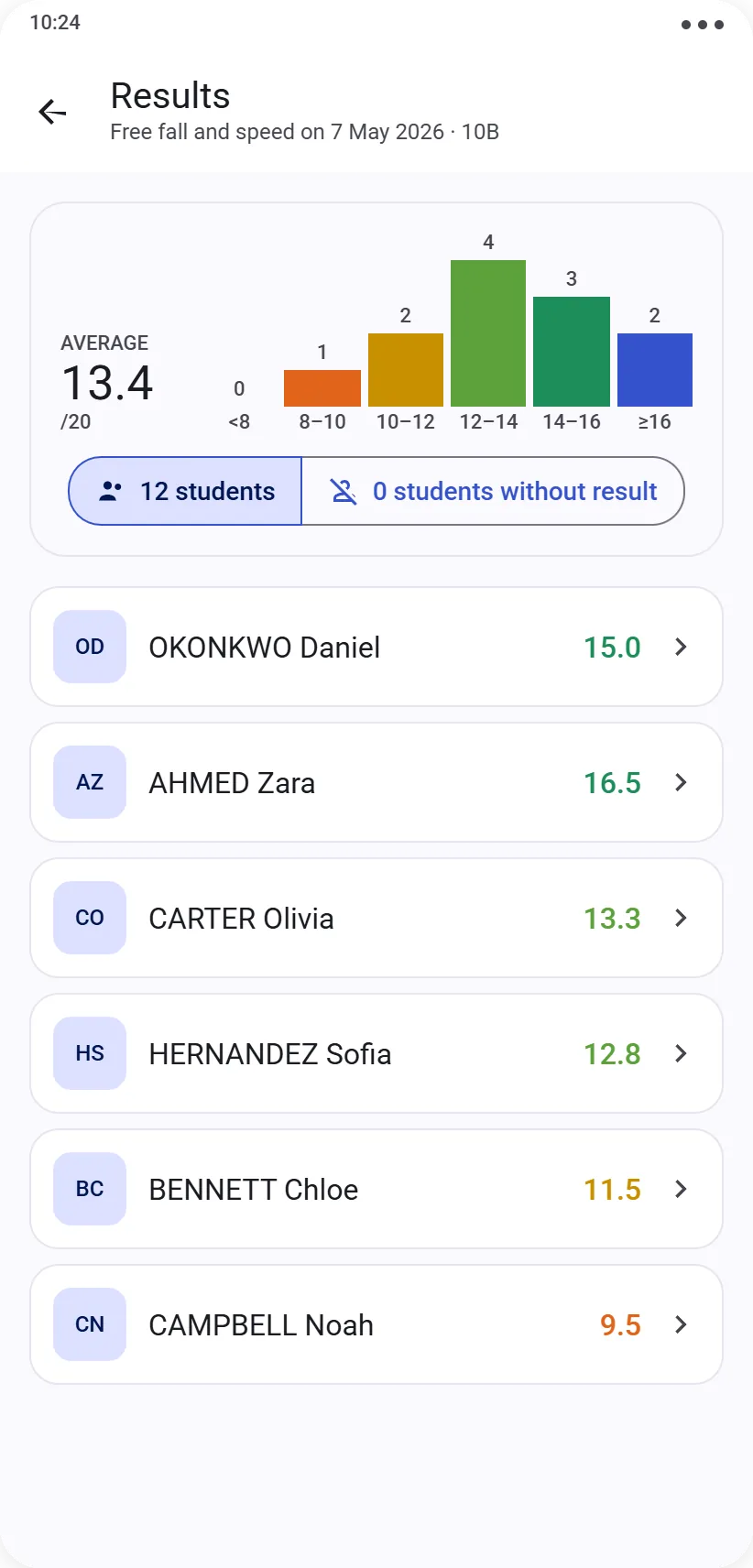
Select a closed session to see a summary header, whose content depends on the protocol type:
Question type — class average out of 20, with a breakdown of grades by range
Competency type — a bar chart showing the distribution of A to E grades
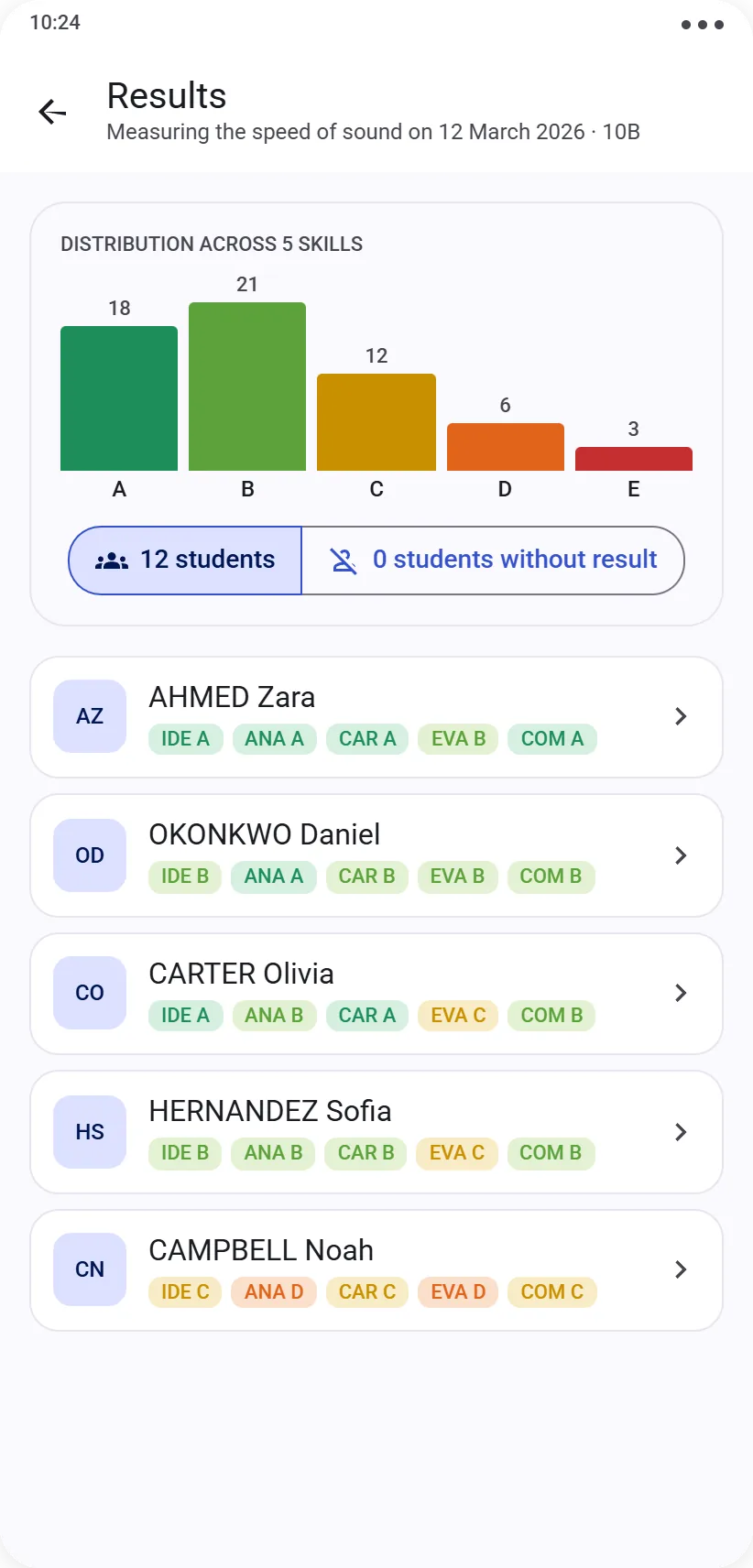
Below that, the list of every student in the session, each with their grade, identifiable at a glance thanks to a color code. A toggle lets you show only students not yet graded for this session — handy to quickly confirm these are genuine absences, not a grading oversight.
Tap a student to see their detailed grading for this specific session: question by question (points earned on each), or competency by competency (A to E, NE if not assessed).
By student
Select a student to see their history across every session, filterable by period and level. Each row shows their grade (question type) or their per-competency results (competency type) for that session.
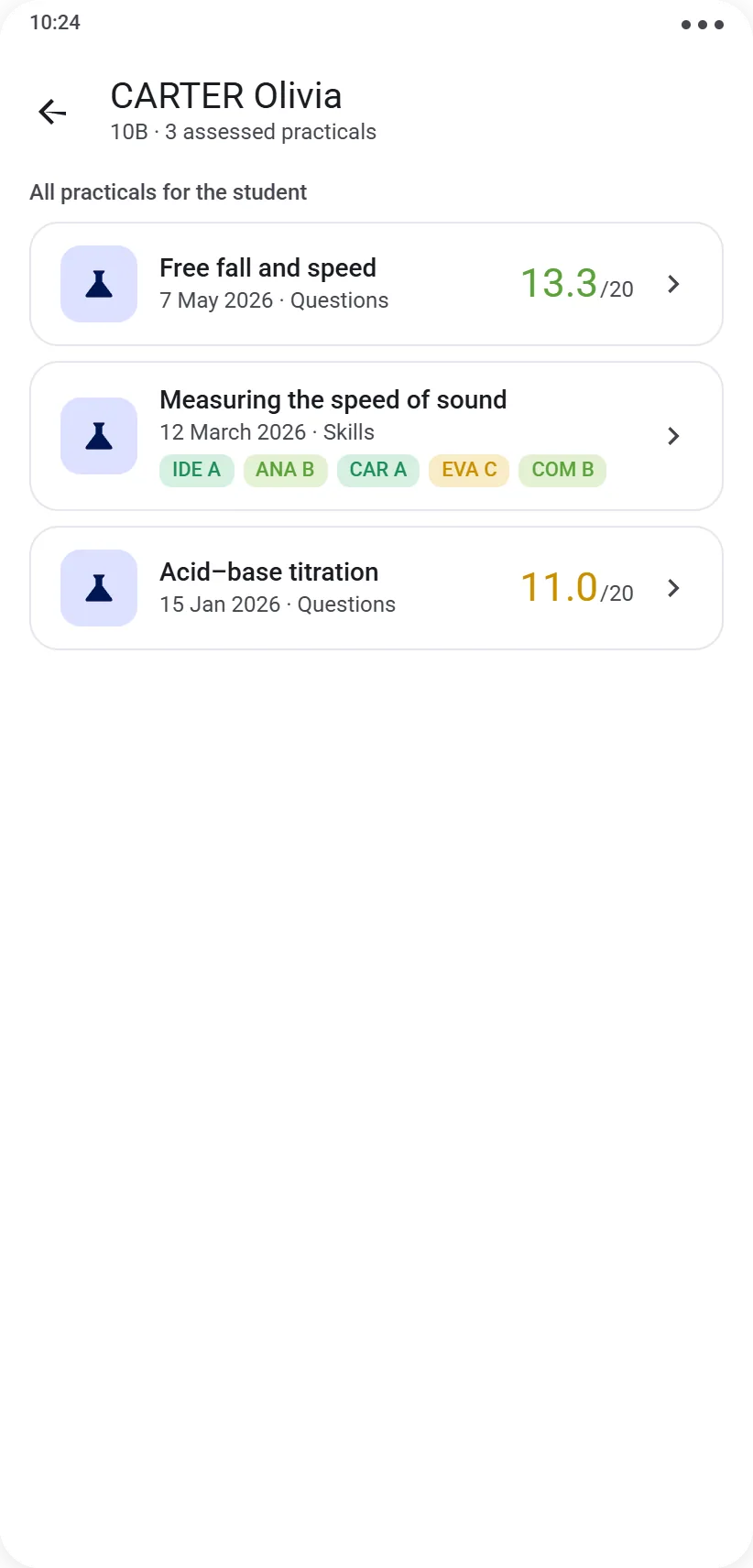
Tap a session in this list to reach the same detail screen as from the “By session” view — both paths lead to the same place.
You’ve covered the main journey! Last but not least, discover EasyPrac Full, the one-time purchase that unlocks unlimited use.